- Tutorials
- Assigning a card to an employee
# Assigning a card to an employee
One of the options for recording attendance is using an RFID card.
Note
The procedure also applies to the RFID chip (key fob).
Warning
At this point, it is assumed that the employee is already enrolled in attendance - he has an assigned personal number.
Steps to be taken:
- Employee registration in the webPatrol module
- Creating a template for a given attendance reader and loading a fingerprint
# 1. Employee registration in the webPatrol module
The webPatrol module is a separate application from attendance itself, so in order to have access to employees, we have to register them
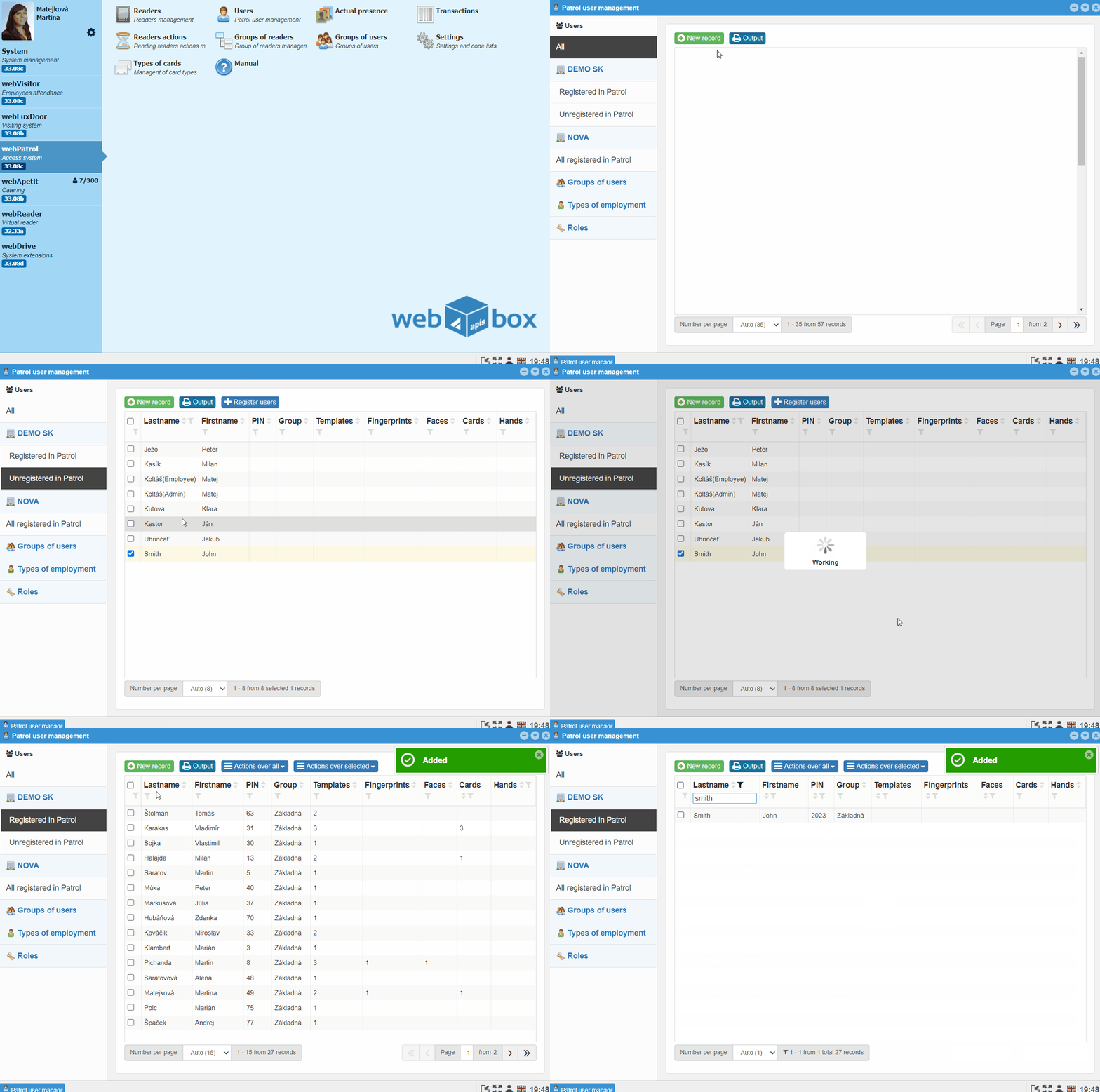
- Open the webPatrol module and enter Users
- Go to the Unregistered in Patrol tab - new employees are located here
- Mark the employee and click the
Register usersbutton - Click the
Yesbutton to confirm PIN = Personal Number
Note
The PIN is the identifier under which the employee appears in the attendance reader
- Now the employee is in the Registered in Patrol tab
# 2. Creating a template for a given attendance reader and loading the card
The template is the record of the employee on the attendance reader. Each type of attendance reader uses a different type of template.
Plug the impersonation reader into the USB port on your computer for scanning cards.

Important
Install the impersonation reader in cooperation with the software consultant of APIS, spol. s r.o.
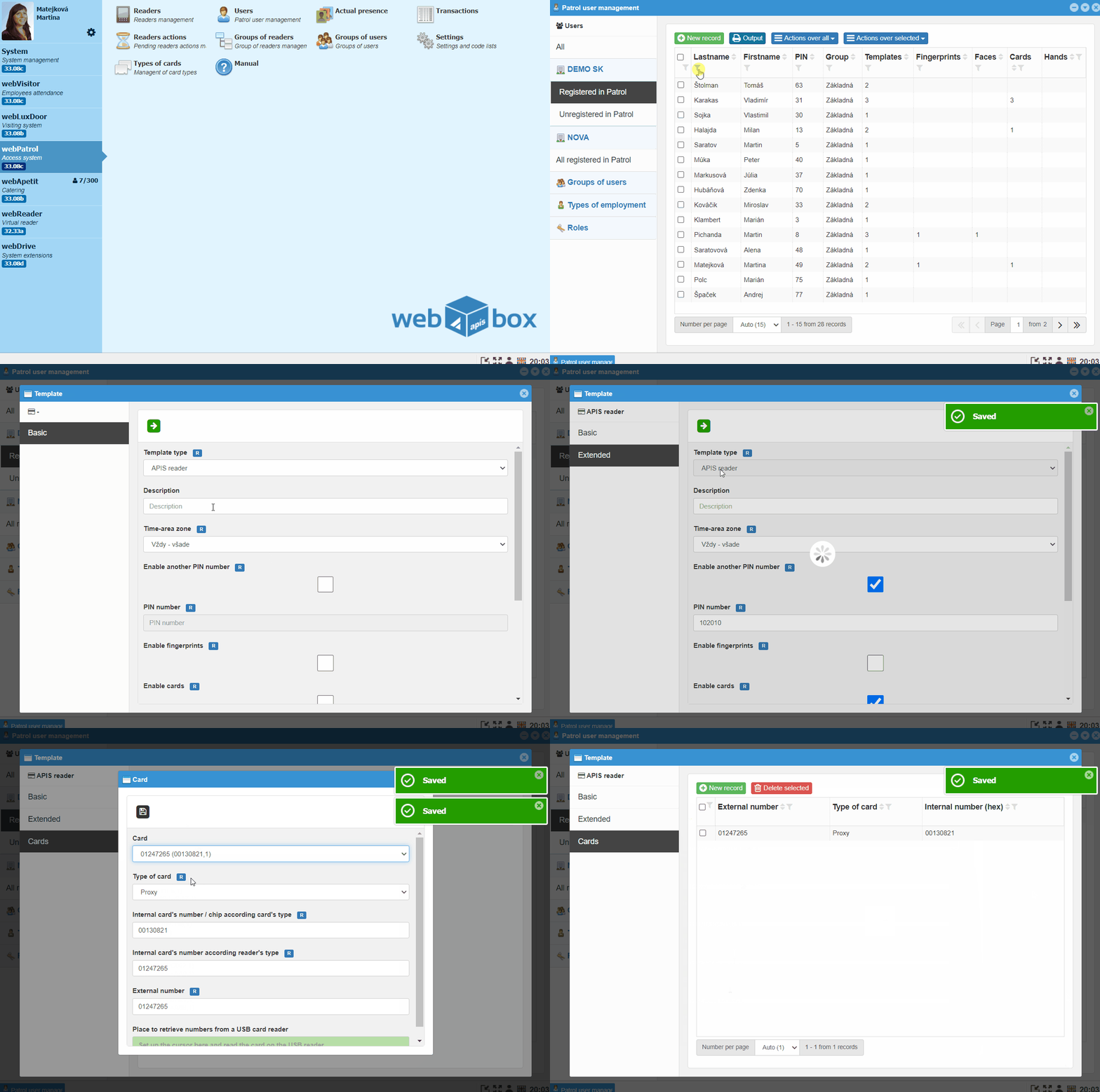
- In the webPatrol module, go to Users and the tab Registered in Patrol
- Search and
double-clickto open the employee record - Go to the Templates tab and click on the
New recordbutton - Select APIS reader template type on the screen and enable Cards
Note
APIS reader - ZPAD+, Biopad ZK - SCR100, Proface, Speedface
You can also combine the template with cards with fingerprints.
- Continue by clicking on the
green →button - Select the privileges of the employee on the reader
Note
User - ordinary employee who is scanned on the attendance reader. Administrator - employee with privileges to enter the menu and configure the attendance reader
- Continue by clicking the
green →button - In the Cards tab, click the
New recordbutton *Place the mouse cursor in thegreen fieldand bring the scanned card closer to the impersonation reader, the impersonation reader reads the card's internal number and fills in other data
Note
Have English keyboard layout set
- Fill in the external card number
Note
The external number identifies the card as described.
- Click the
Savebutton
Note
It may happen that it will report errors such as "External" or "Internal number of the card already exists", which means that the card is already loaded in the program. In that case, you can find the given card in the "Cards" drop-down box.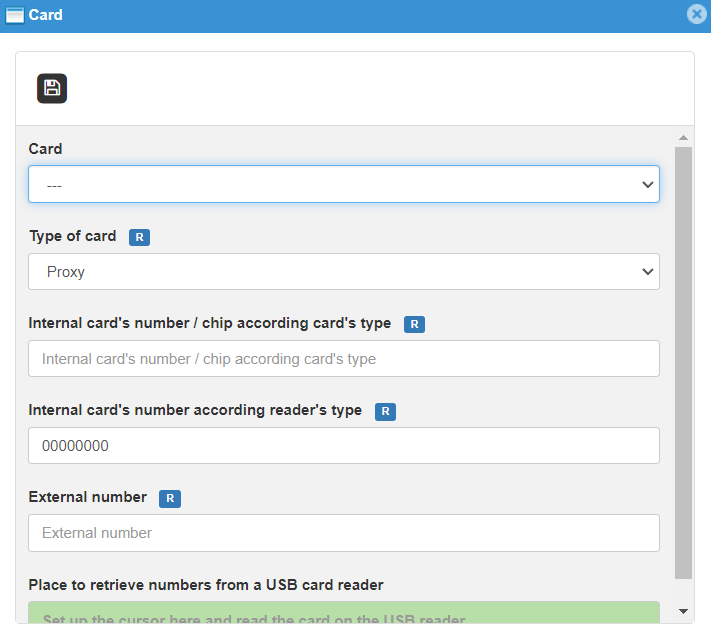
- After successful saving, you can close the Cards window
- Go to the tab Readers
Note
Readers are displayed according to the group assigned to the employee.:::
- Mark the attendance readers and click the
Synchronize changedbutton - After successful synchronization,
Synchronizedis displayed for the given reader
[tip:Note]
The reader window is automatically refreshed at short intervals. You can perform an immediate refresh by clicking on the Readers tab.
The assigned card is on the attendance reader and the employee can start registering for attendance.