- webLuxDoor
- Basic operations
# Basic operations
# Launch
Open the WebBox application by opening the assigned URL address in a web
browser (Firefox, Chrome, ...), e.g. https://dochadzka.top/ourcompany. In the left
menu, click on webLuxDoor.
Then you have a menu that consists of options: Arrival and departure, Actual presence, Archive of transactions, VIP persons, Stop persons, Visit areas, Areas types, Countries, Groups of access rights, Settings, Graphs, Statistics, Planning of visits, Gatehouses, GDPR.
The permission to access menu items is set in the Groups of access rights. The
individual menu menus will be described in more detail in the following sections.
# Connecting a document reader
Connect the "DESKO IDenty CHROME" reader to the USB port of the computer that will operate the doorman.
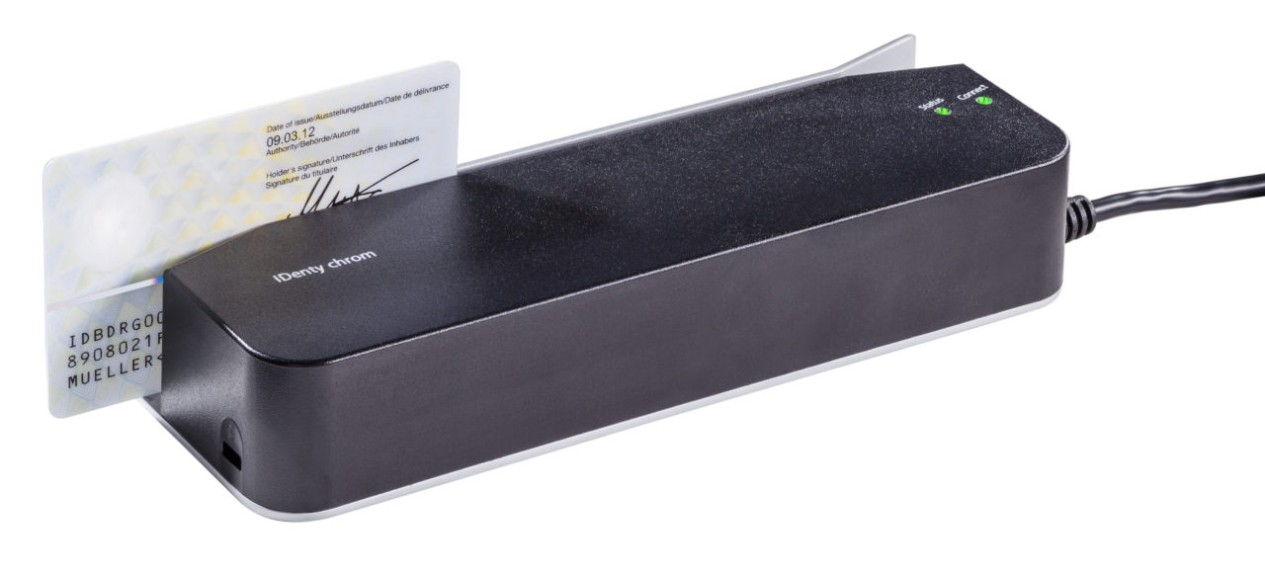
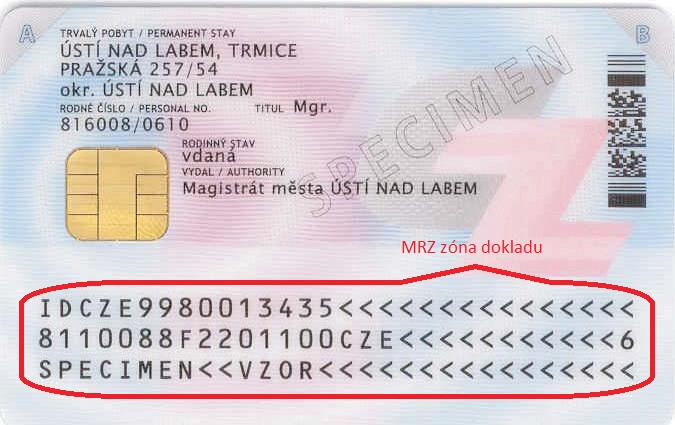
To read the document, it is necessary to pull the document (eg ID card, passport) at a stable speed through the reader, so that the MRZ zone faces the thicker part (body) of the reader.
# Connecting a visiting card reader
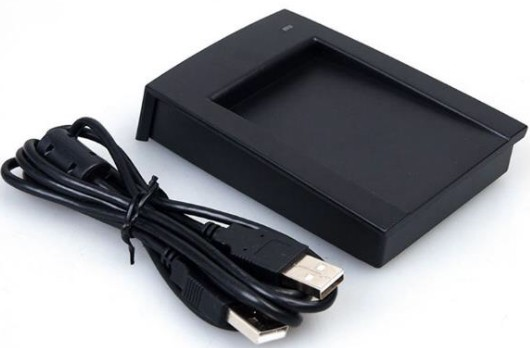
Connect a proxi / mifare card reader. For the card reading function to work, it is necessary to activate the option "Card reader connected" in the "Guest cards" section in the settings (See 3.9.1 Check in of visitor tab).
# Attaching the signature pad
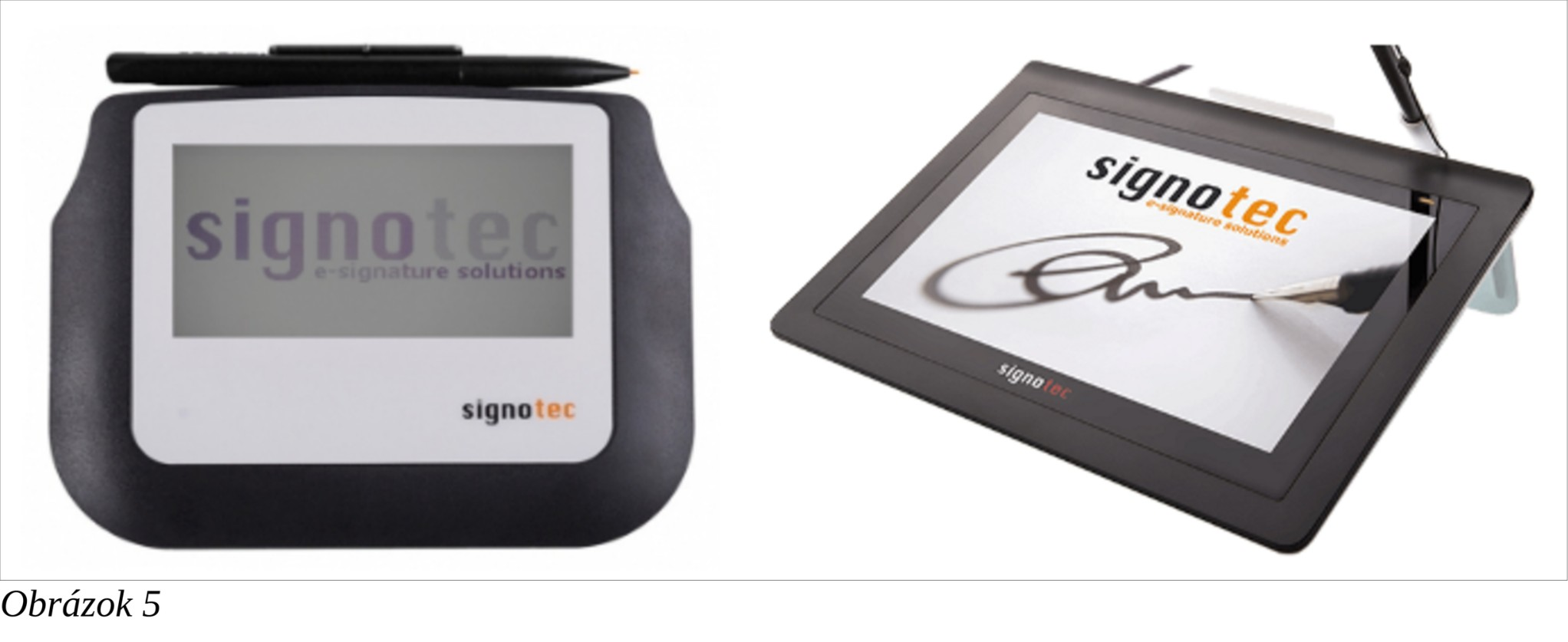
Connect the "Signotec Signature Pad" model Sigma or Delta, to the USB port of the computer that will operate the doorman. A program operating the signature pad must be installed on this computer.
# ANPR camera connection
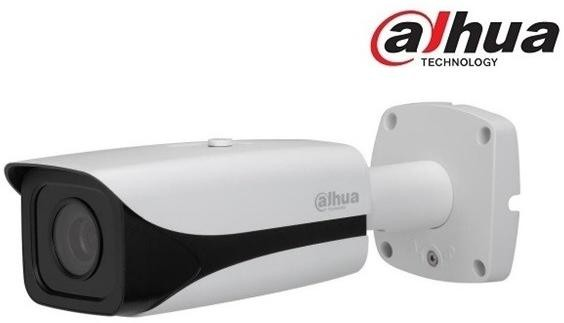
Connect a Dahua, AXIS or MOBOTIX camera to the local network.
# ANPR camera modes
ANPR camera can work in two modes:
- The camera is used to automatically fill in the LPN field + display the LPN photo
on the
Arrival and Departurescreen. See 2.6.1 Automatic completion of the LPN field. - The camera is used for automatic opening of the ramp either for all cars or only for cars from the list, as well as taking pictures (optional storage) of the LPN. See 2.6. Automatic Gateway.
# Automatic completion of the LPN field
This article describes how to set up the camera.
Dahua camera
It is necessary to prepare an FTP server to which the camera will send data.
If it is not possible to establish a connection with the FTP server, the reason may be Firewall. Set the ANPR camera to:
- enable FTP
{ANPR camera ip} -> Setup -> destination -> check FTP
- FTP server configuration
{ANPR camera ip} -> Setup -> destination -> FTP tab -> set path to FTP server
- file name configuration
{ANPR camera ip} -> Setup -> destination -> FTP tab -> section „Picture
Naming And Store Path, set the image file name format:
%y-%M-%d %h-%m-%s.png Example file name: 2013-01-06 15-27-30.png
- directory for camera data
the „web\data\luxdoor“ directory must exist on the web server
# Automatic Gateway
In this mode, the application ensures the automatic opening of the gate. Depending on the settings, the gate will open either for all cars or only for LPNs that are in the Allowed license plates list. Depending on the settings, gate openings can be recorded (optional) along with an LPN photo (optional).