- Tutorials
- Approval of breaks
# Approval of breaks
The Approving - breaks module offers the possibility to electronically request an break(for example, a vacation) without the need to write out requests manually.
Warning
At this point it is assumed that the settings are given:- activated module Approving - breaks
- assigned authorization Approver to a superior employee or attendance manager
- assigned Approver Group to employees
- set Approving break
- setting Email notifications
Important
Perform the first setup in cooperation with the software consultant of APIS, spol. s r.o.
# Sending an break request
Request from the employee.
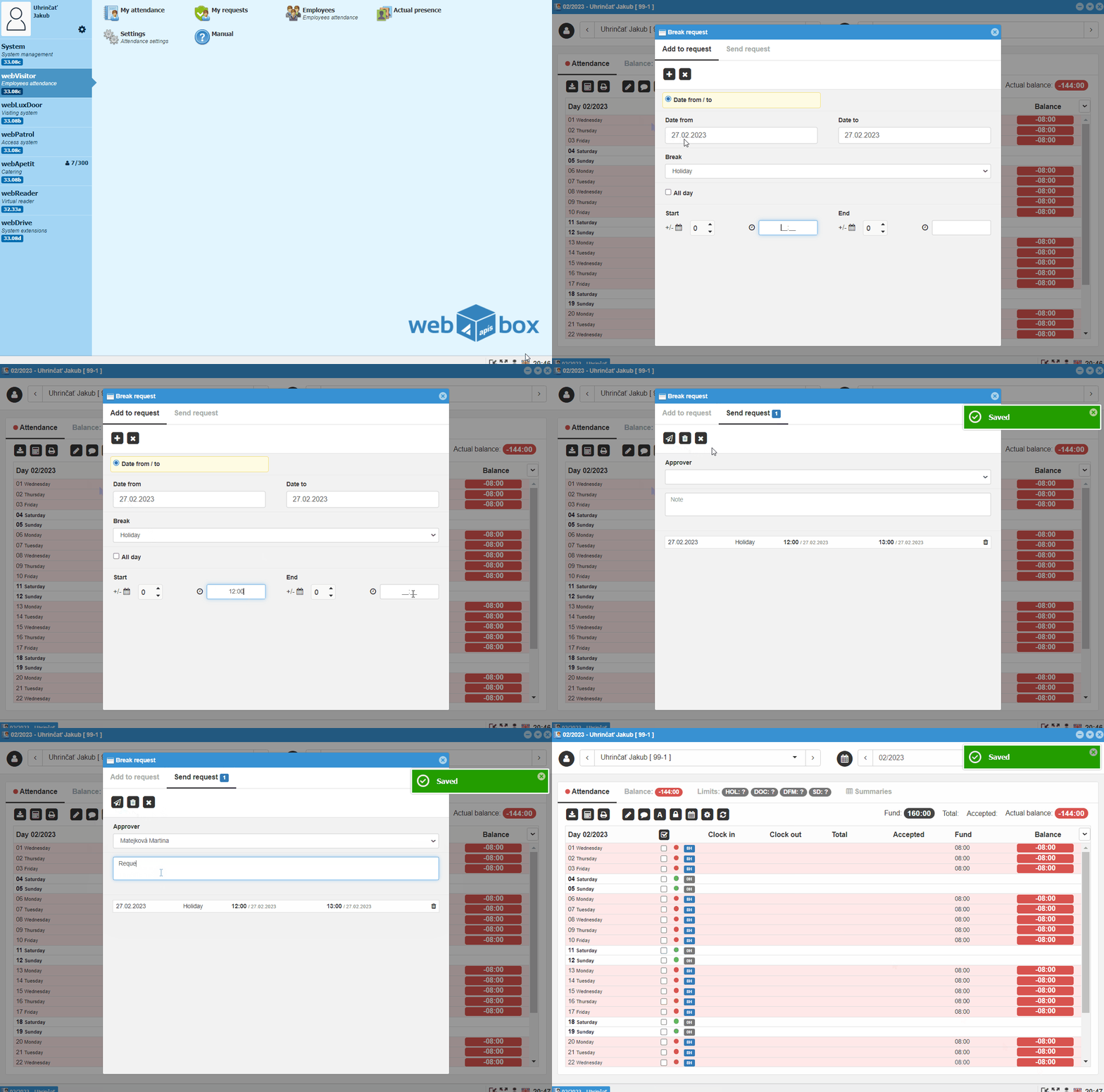
- Open the webVisitor module and enter My attendance
- Go to the desired month and mark the days for which you want to request an break
- Move your mouse over the
Pencilicon and click onBreak request - Select Break, enter start/end, or mark Daylong
Note
Depending on the break settings, it is also possible to request Halfday at the start or end of the shift.
- Confirm by clicking the
+button - Select the approver to whom you want to send the request
- Confirm by clicking the
Send requestbutton
The request will be sent to the approver.
Requests can be found in My requests. After changing the status of the request, this window will be displayed automatically during the new login.
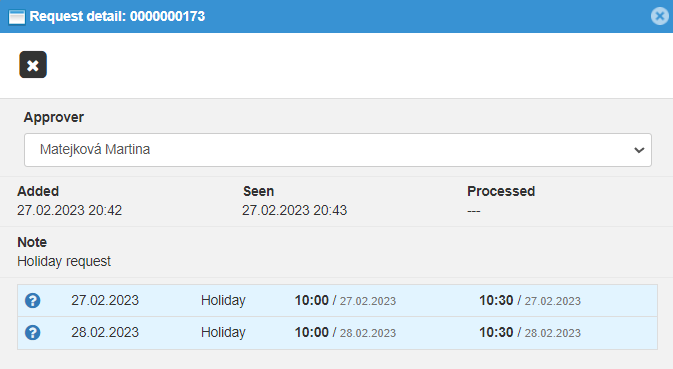
Warning
It is not possible to request a break to an employee other than the one registered.
# Approve the break request
Approval by the approver.
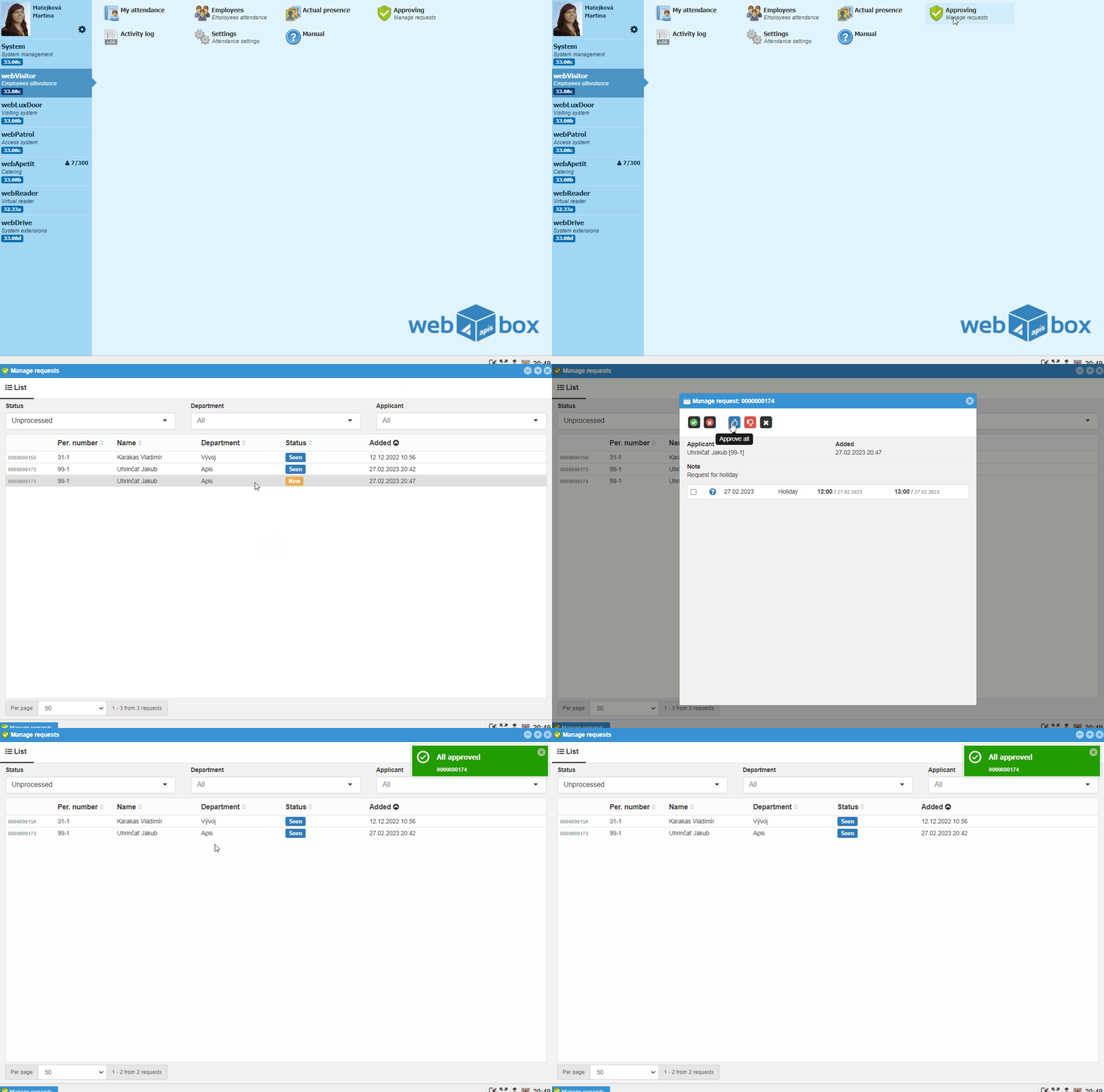
- In the webVisitor module, go to Approving
-
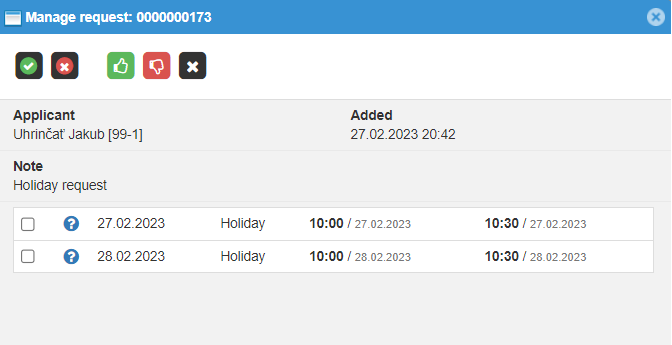
Double-clickto open the approval request - Click the
green buttonto approve the request, or mark only certain days and confirm with thegreen ✓button or thered buttonreject the request
Break request is now approved.
Requests for approval can be found in Approving. In the case of a new application, this window will be displayed automatically during the new login.
Note
The approver can apply to himself.
# Approved break in attendance
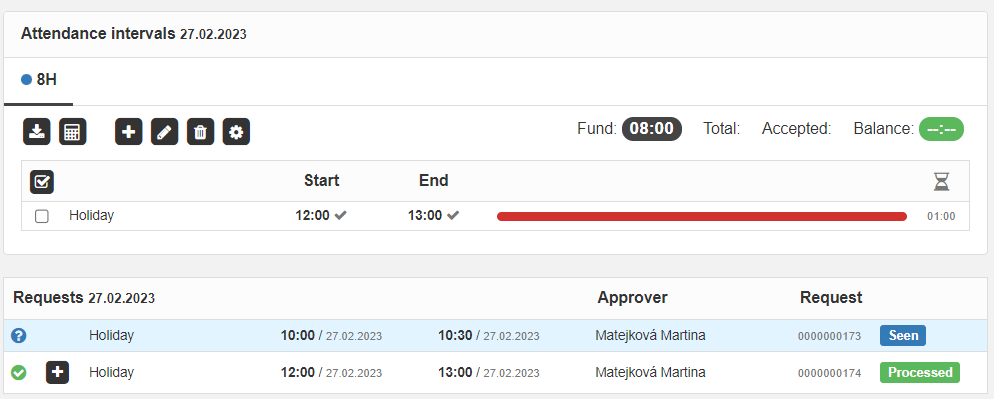
Once approved, the approved breakis automatically entered into attendance.
Note
You can also request a break retroactively.# Email notifications
The approver will receive a notification by email about the break request. He can approve or reject the request directly from this notification.
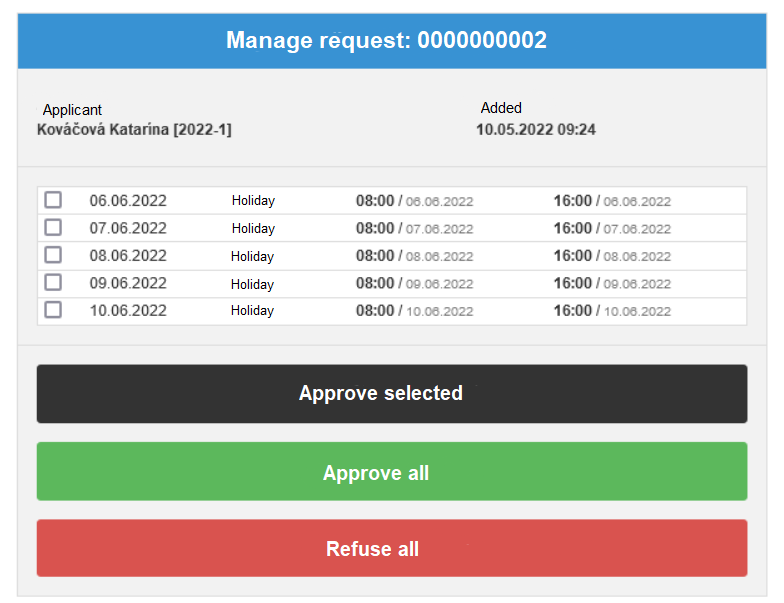
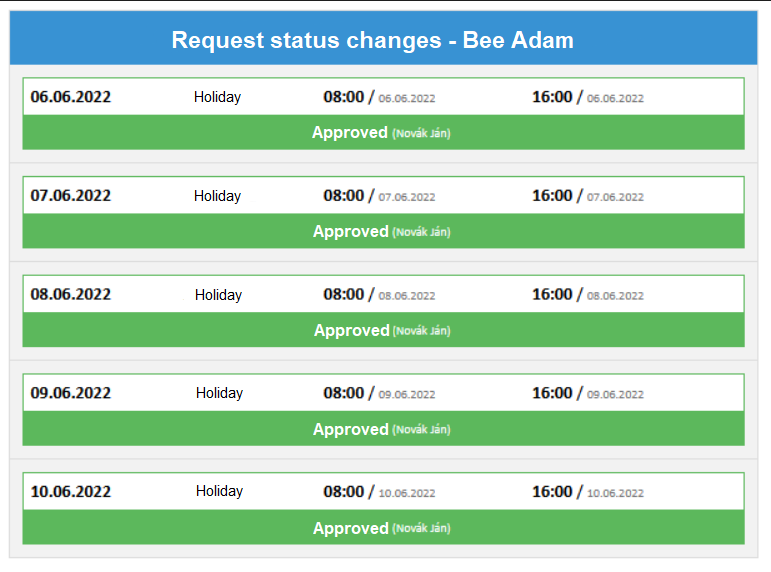
After approval or rejection, the employee will receive a notification about the status of the application.