# Assigning an employee's fingerprint on the attendance reader
One of the options for recording attendance is by scanning a fingerprint. If the customer has not purchased a personalization reader to read the fingerprint, it is possible to scan the fingerprint directly on the attendance reader.
Warning
At this point, it is assumed that the employee is already enrolled in attendance - he has an assigned personal number.
Steps to be taken:
- Employee registration in the webPatrol module
- Creating a template for the attendance reader
- Fingerprint loading
- Template import with fingerprint loading into webPatrol
# 1. Employee registration in the webPatrol module
The webPatrol module is a separate application from attendance itself, so in order to have access to employees, we have to register them.
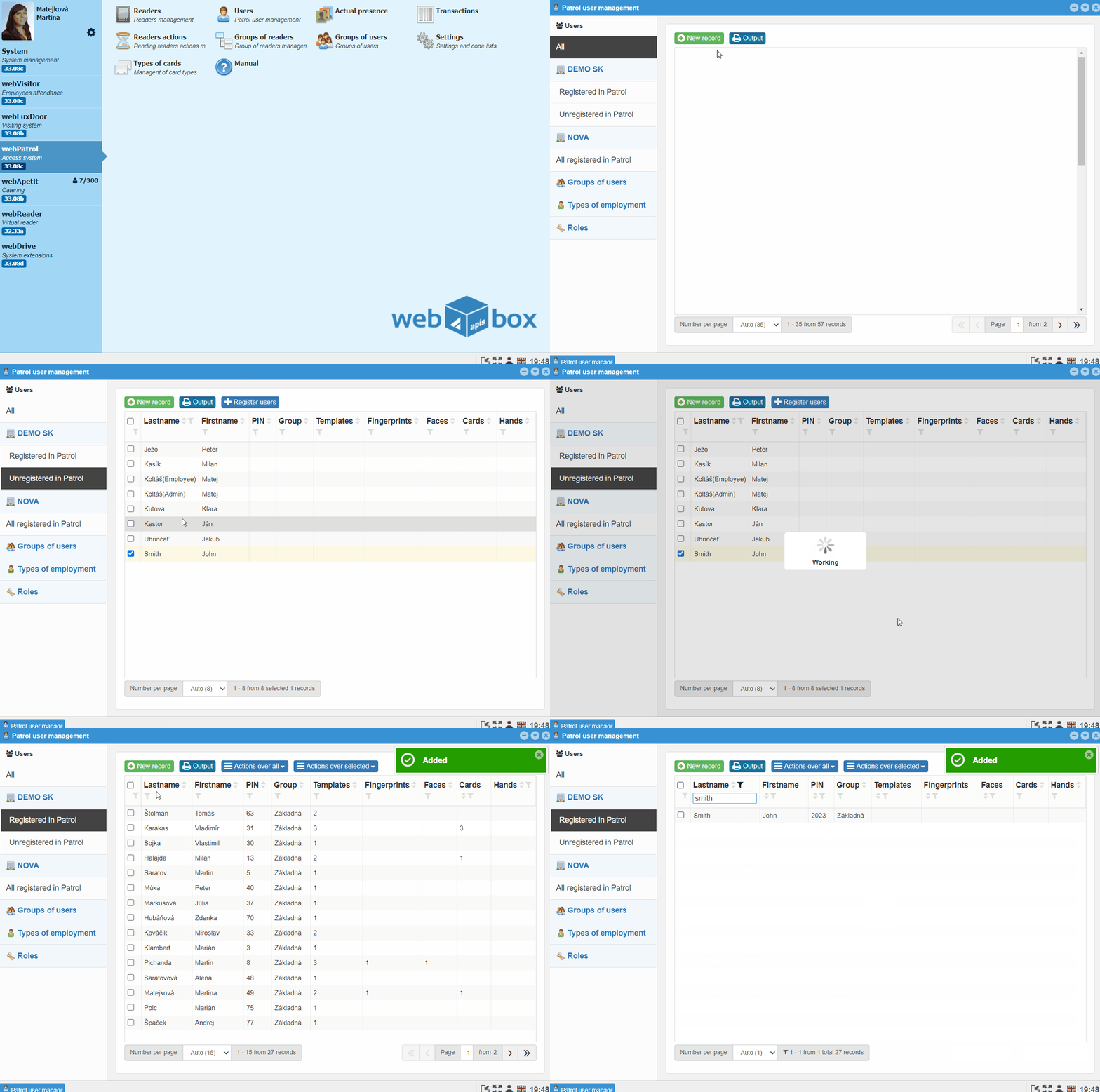
- Open the webPatrol module and enter Users
- Go to the Unregistered in Patrol tab - here are the new employees
- Mark the employee and click the
Register usersbutton - Click the
Yesbutton , confirm PIN = Personal Number
Note
The PIN is the identifier under which the employee appears in the attendance reader
- Now the employee is in the Registered in Patrol tab
# 2. Creating a template for the attendance reader
The template is the record of the employee on the attendance reader. Each type of attendance reader uses a different type of template .
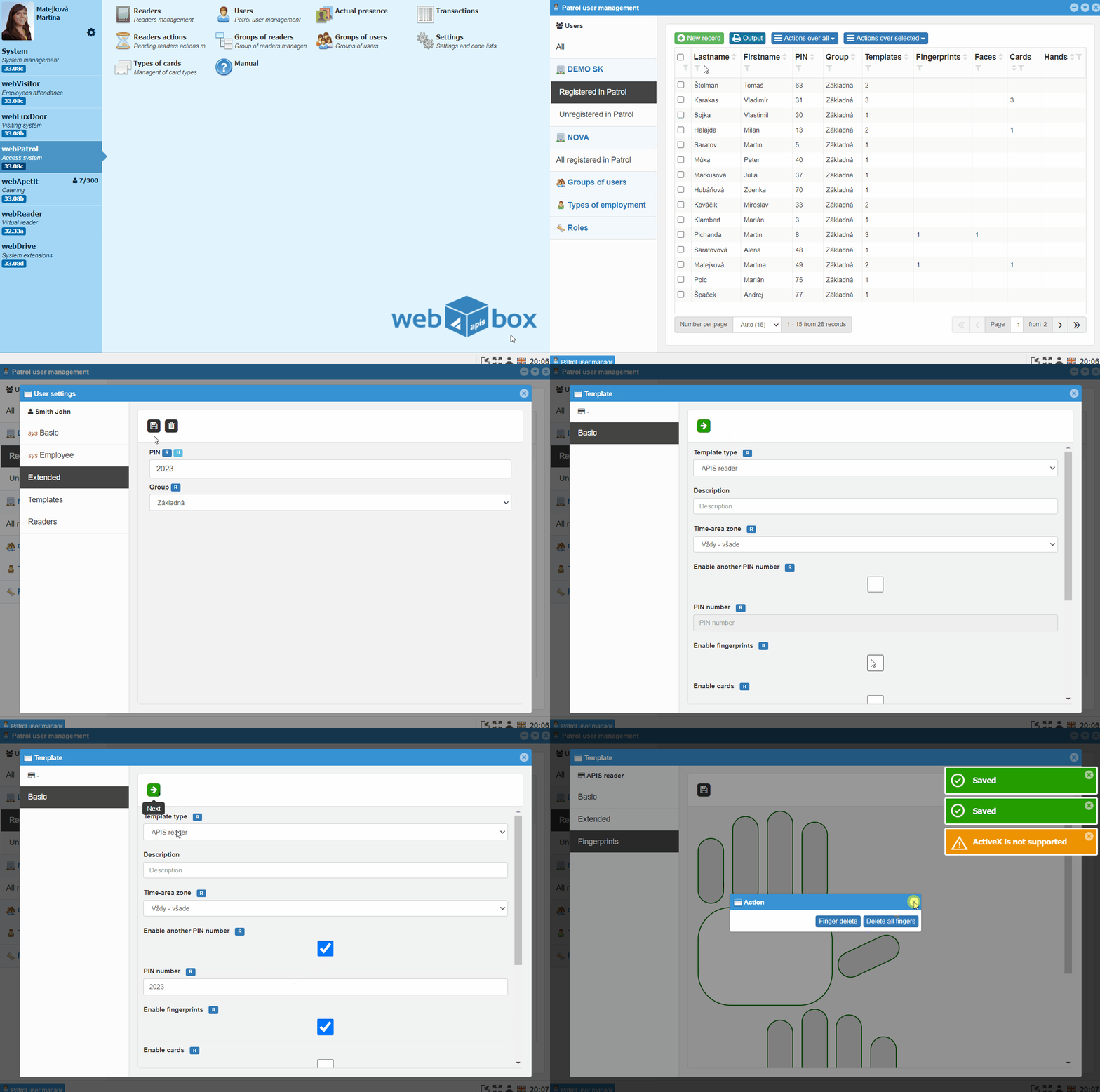
- In the webPatrol module, go to Users and to the tab Registered in Patrol
- Search and
double-clickto open the employee's record - Go to the tab Templates and click on the
New recordbutton - Select APIS reader template type on the screen and enable Fingerprints
Note
APIS reader - ZPAD+, Biopad
ZK - SCR100, Proface, Speedface
You can also combine the fingerprint pattern with cards.
- Continue by clicking on the
green →button - Select the authorization of the employee on the reader
Note
User - an ordinary employee who is registered on the attendance reader
Administrator - an employee authorized to enter the menu and configure the attendance reader
-
Continue by clicking the
green →button -
Fingerprints are scanned directly on the attendance reader, so you can close the window and go to the Sensors tab
Note
Readers are displayed according to the group assigned to the employee.
- Select the attendance readers and click the
Synchronize changedbutton. - After successful synchronization,
Synchronizedis displayed for the given reader
# 3. Fingerprint loading
There is an empty template on the attendance reader into which you can take a fingerprint.
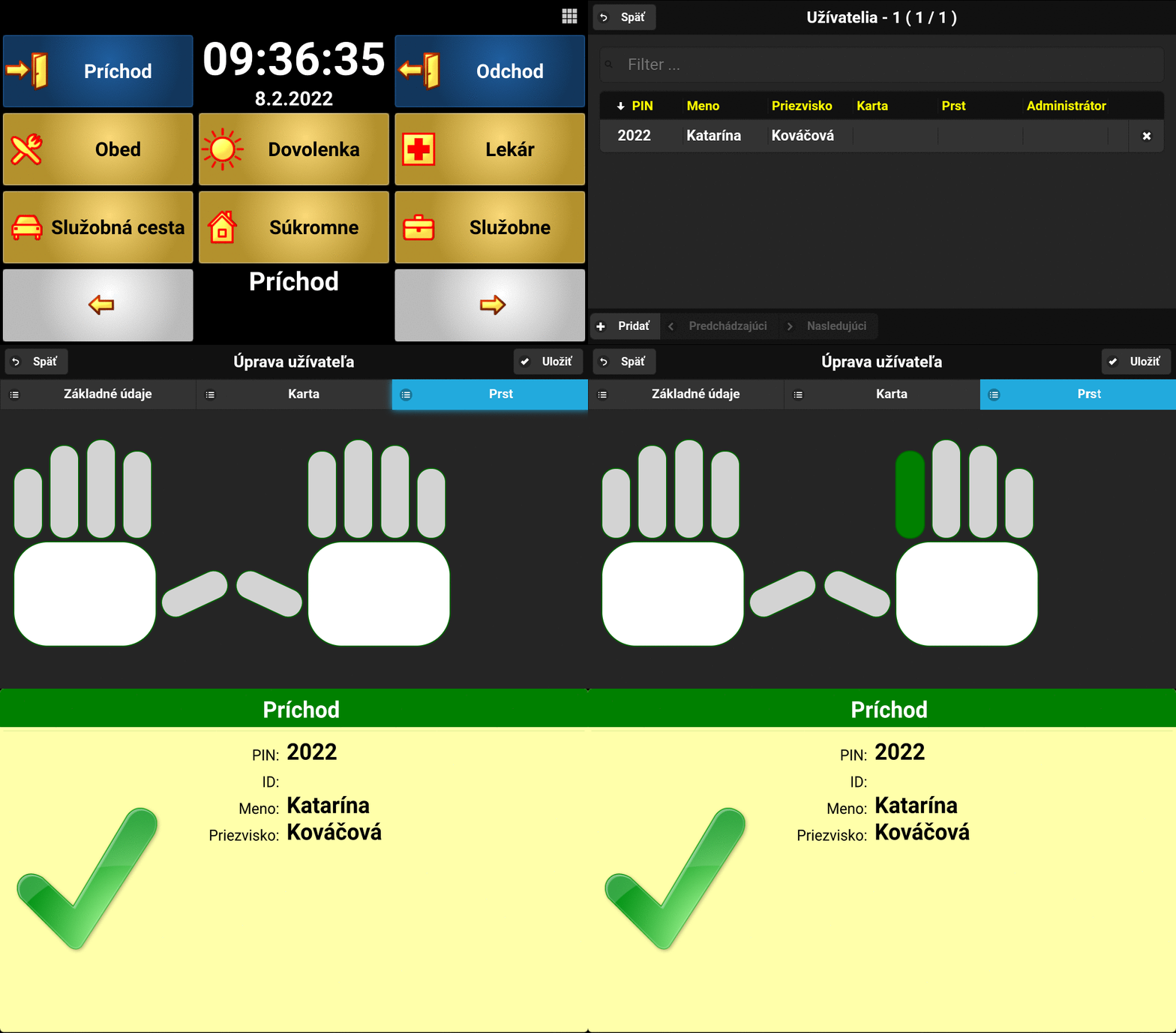
- On the attendance reader screen, press the square icon to access the reader menu
- Go to Users and select an employee
- In the employee, switch to the Finger tab
- Click on the finger you want to load and select Load finger
- You will be prompted three times to place your finger on the fingerprint reader
Note
You gradually place your finger on the glass on the fingerprint reader. We try to make the belly of the finger in the center of the slide. Do not press hard on the slide, but do not touch it very gently either.
Damaged, dry, cold fingers can affect the loading of the template. If you can't get a fingerprint, try another finger. We recommend that each employee take two fingerprints.
- After successful loading, click the Save button and you can exit the reader menu
- Try your fingerprint by registering on the attendance reader
# 4. Template import with fingerprint loading into webPatrol
Warning
It is important to upload the template to webPatrol after scanning the fingerprint on the reader, because there is still an empty template in webPatrol. Prevent templates with fingerprints from being overwritten by blank templates when synchronizing employees to the attendance reader.
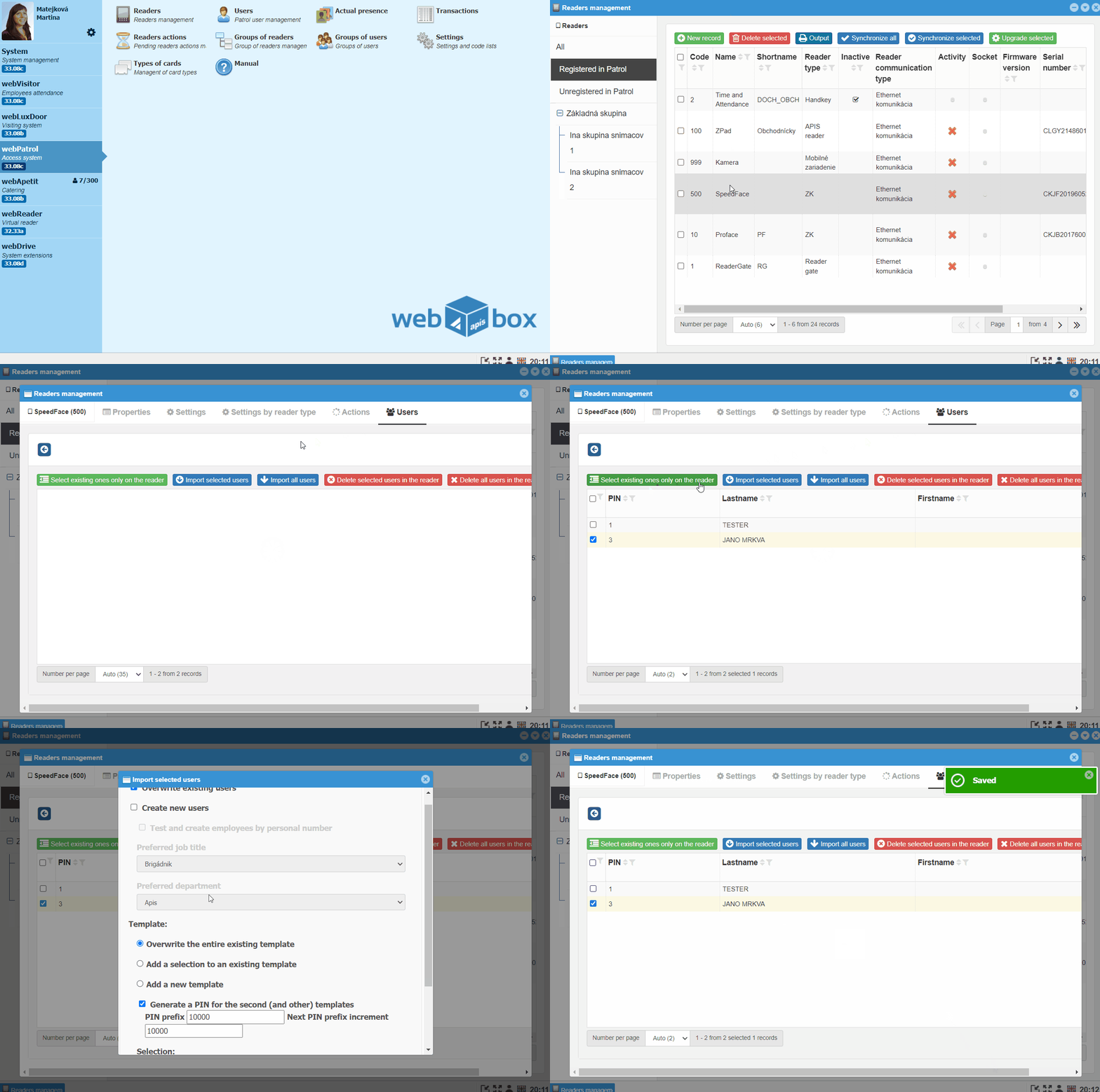
- In webPatrol, go to Readers
- Double-click your reader
- Go to the Users tab
- Click on the
blue ←to load the current list of users on the reader - Mark the employee and click on the
Import Marked Usersbutton - Check Overwrite existing users and check below if Fingerprints are checked
- Confirm by clicking
Yes - The fingerprint template will be uploaded from the reader to webPatrol