# Basic informations about webBox
WebBox serves as a multifunctional system that can be used for employee attendance records, user access to various facilities, visitor records, ordering and delivery of lunches, etc.
# Login to the System
You log in to the webBox system using the link in the web browser assigned to you by the SW technician and using the login screen:
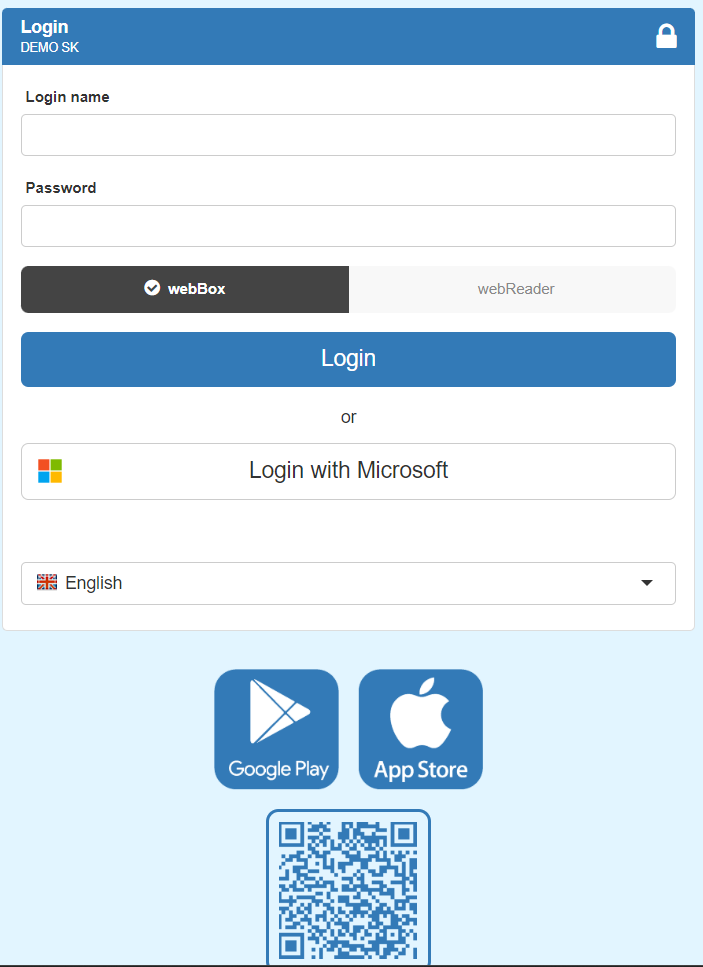
Login name and password: use assigned by the SW technician
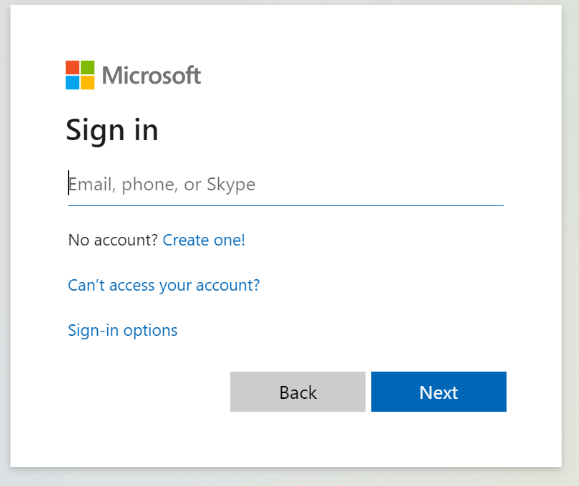
If you have an active Microsoft Graph API OAuth 2.0 system connector and set automatic redirection, the Microsoft login page will open.
# Custom settings
We recommend changing the assigned password. On the webBox main screen, by clicking on the wheel for user settings:
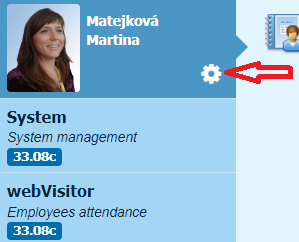
In the mentioned menu, it is possible to customize the user environment according to your custom settings.
# Password
Click on Password and a screen for changing the password will appear:
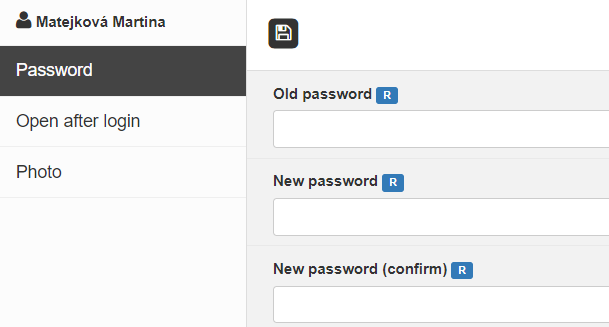
Save the password  .
.
# Open after login
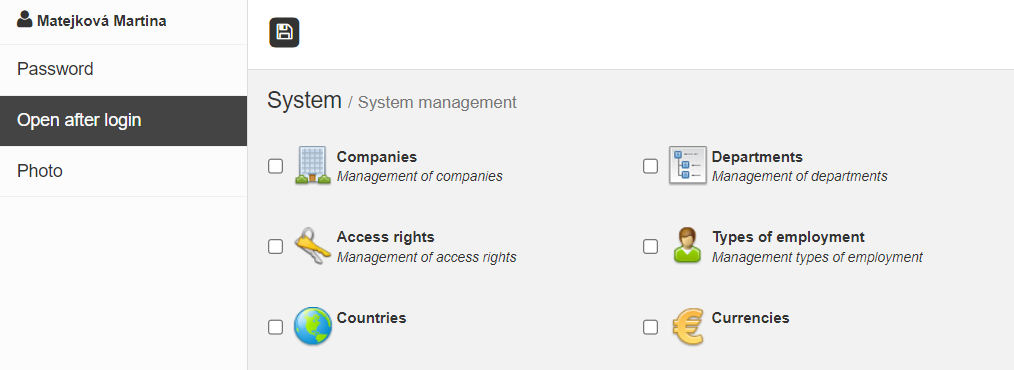
Click on Open after loginto set the windows that will be opened immediately after login:
# Photo
Clicking on the Photo button will display a dialog box for uploading a photo from a file.
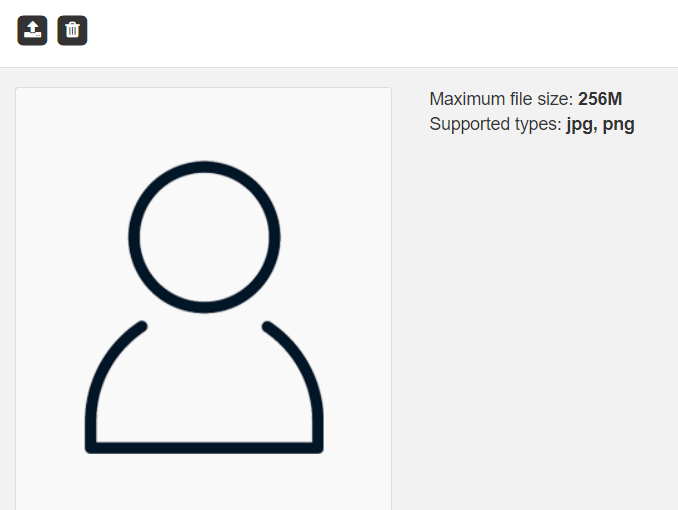
Press the arrow and select your photo from the file:

Note
The uploaded photo is displayed in the employee's attendance profile and in the grid (in the actual presence monitor) of the employee.
Save the settings .
# Description of the main webBox screen
The main screen is divided into individual parts:
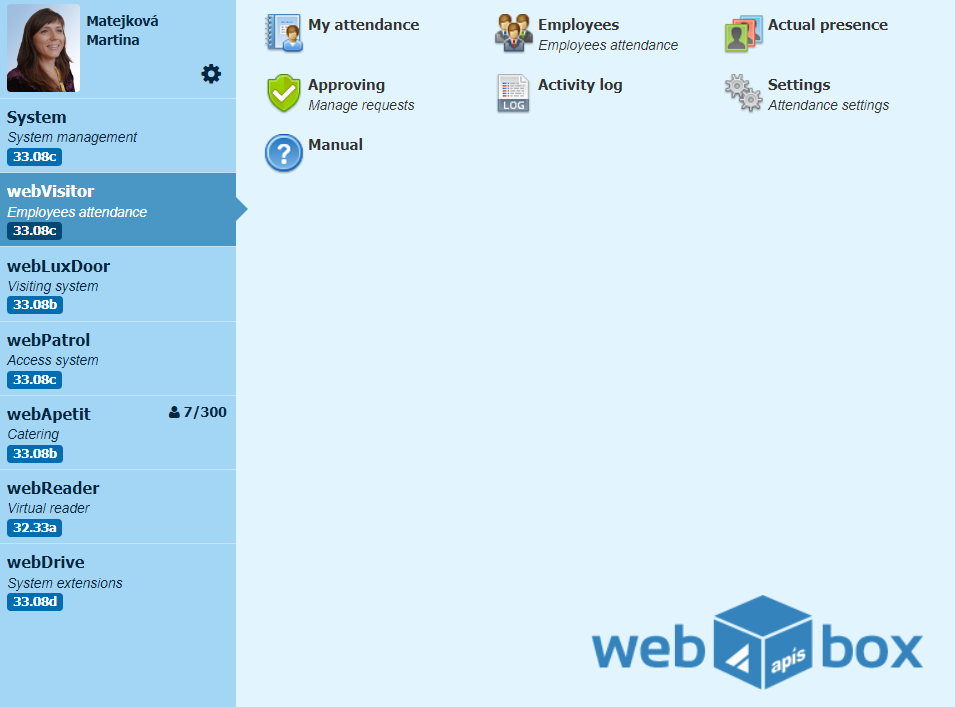
1. left side of the screen:
-
Name and surname of the user with the possibility of a photo and personal customization of the system, see Custom settings
-
Activated applications of the webBox system, to which the user has access according to the set rights, see Access rights
-
Permitted licenses for the number of employees, diners .....
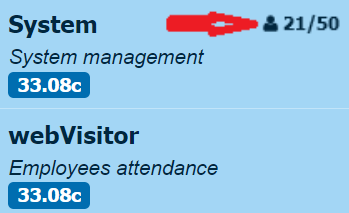
Example
License 21/50. The first number in licenses means the number of occupied active licenses (21) and the second number the number of all purchased licenses (50).
- The version number of each application
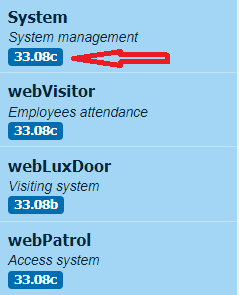
2. right side of the screen:
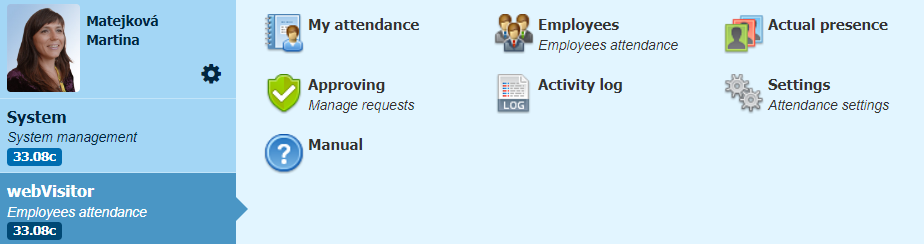
- contains modules for management and work in the selected application:
For example for the webVisitor attendance module, the work modules are displayed as follows:
Note
The display of modules depends on the rights of the logged-in user.

- option to minimize the window
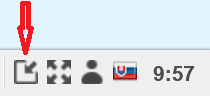
- option to enlarge the window to full screen
- logging out of the webBox system
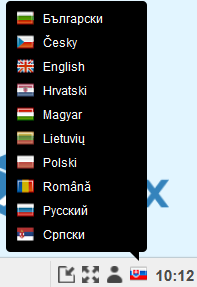
- change the language