- webPatrol
- Actual presence
# Actual presence
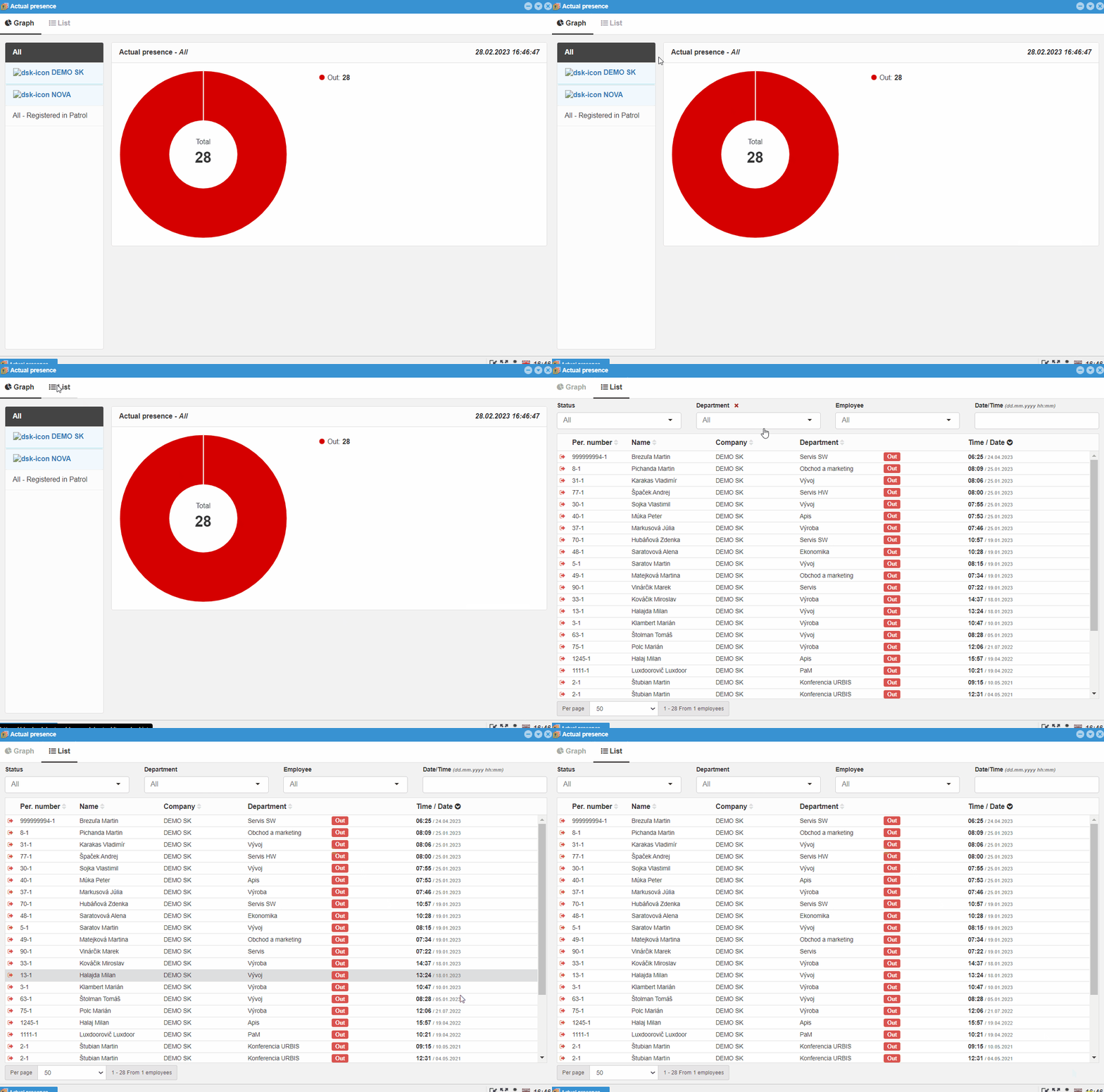
It is used to view the actual present users in the monitored areas. It is first necessary to correctly set the readers in the basic properties Area from and Area to. If the areas are set correctly, Actual Presence will display the area in which the user is currently located. The green color shows users who are in the areas that are being monitored. The red color shows users who are outside the monitoring areas.
Example
The building is divided into several areas, to which only authorized persons have access. This access is defined by the privileges on the reader. There are areas in the building: "Entry room", "Ground floor", "Staircase", "1st floor", within the 1st floor is the "Server room", "2nd floor", "3rd floor", and on the 3rd floor there will be a "Directorate", "Outside".For each access card (or person), we will define which readers (areas) it can pass through. Upon arrival in the building, the person in the actual presence will be marked in green with the name of the space in which he is located. He will enter the building and will immediately appear next to the name Entry Room in the actual presence. When he goes to the 2nd floor he appears in actual presence on the 2nd floor. The director will also be green, but he will be marked in the Directorate area, since he is currently located there. The next person will still be marked as "Staircase", as he needs to get to the 2nd floor. For the time being, other users will be marked in red with the inscription Outside, since their last transaction was leaving work and moving to the "Outside" area.
# Graphic version
In the graphic version of the actual presence, you can filter users by Departments. The number of users from the selected department who are located in the bottom will be displayed in a circle in green color and next to the circle a visible number of how many users are in each section.
# Table version - List
The list shows a table with Personal number, Name, Department, Time/Date. You can filter by:
-
Status:-
Outside, orArea - Areas created by you
-
-
Department -
Employee -
Date/Time
Example
Date/Time filter in the format dd.mm.yyyy hh:mm - 10.5.2022 11:54