- Tutorials
- Record of a new employee
# Record of a new employee
The record of a new employee consists of individual steps:
- Creating a user - a user is a person who somehow works with the program
- Access rights - assigning rights for the user
- Creating an employee - the employee is a user of the program, which is recorded in attendance
- Assigning rights to departments - assigning departments to the user to which he can access
- Plan generation - generating a work calendar
# 1. Creating a user
In the user report there is a code list of all persons registered in the program.
The user can be, for example, an ordinary employee who is registered in attendance, or an external employee who does not have her own attendance data, but logs into the program.
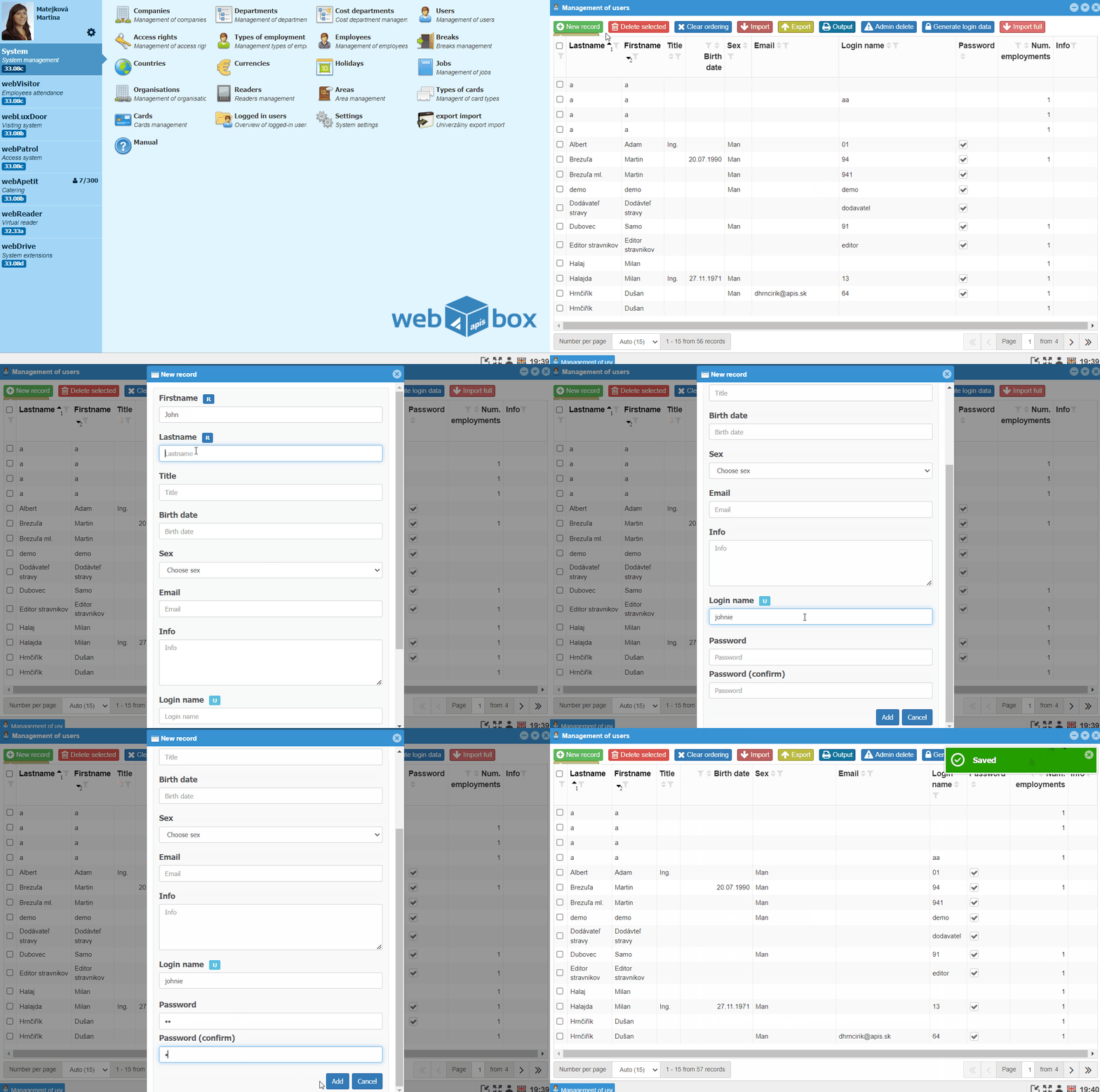
- Open the System module and enter Users*
Click on the
New Recordbutton* Fill in First Name and Lastname, other fields are optional
Note
If the user will log in to the program (attendance administrator, employee who can monitor/edit attendance, employee who scans through a virtual reader,...), fill in the login name and password.
An employee who only registers for attendance using a card, fingerprint, face, and does not interfere with the program in any way, does not need a login name and password.
Fill in the email if you use electronic approval of breaks and attendance.
- Use the
Addbutton to create a user
Note
The value marked R is required, the value U must be unique.
You can edit it by double-clicking on an already created record.
# 2. Access rights
Setting user access to modules and assigning groups with rights.
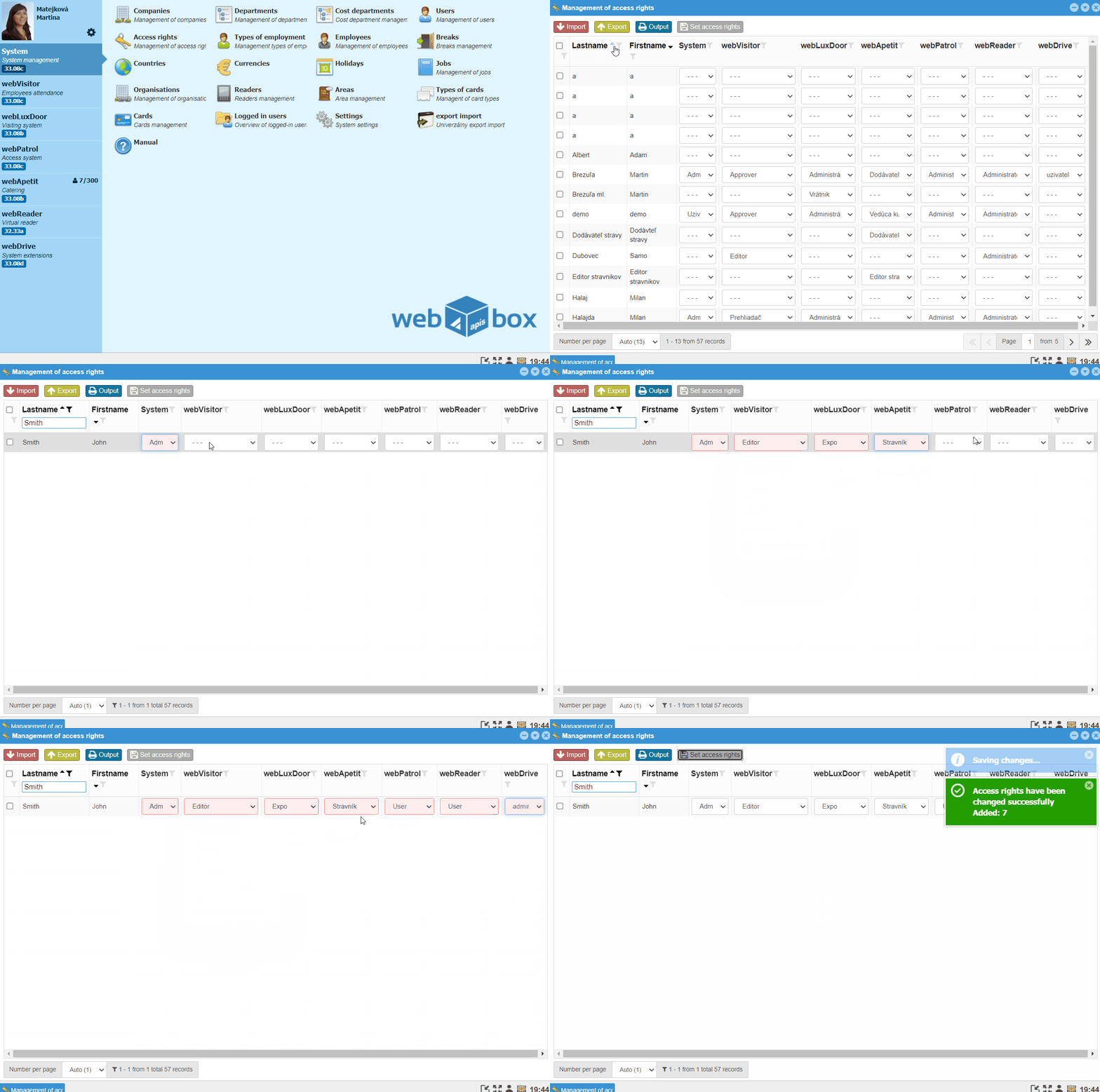
- In the System module, go to Access rights
Note
Individual columns present separate modules (System, webVisitor, webPatrol).
- Search for the user and select the desired rightsin the drop-down fields, an empty field
---prevents access to the given module - You can save the rights by clicking on the
Set access rightsbutton
Note
It is also possible to create your own rights groups.
# 3. Creating an employee
An employee is a person who has been assigned a personal number and is registered in attendance.
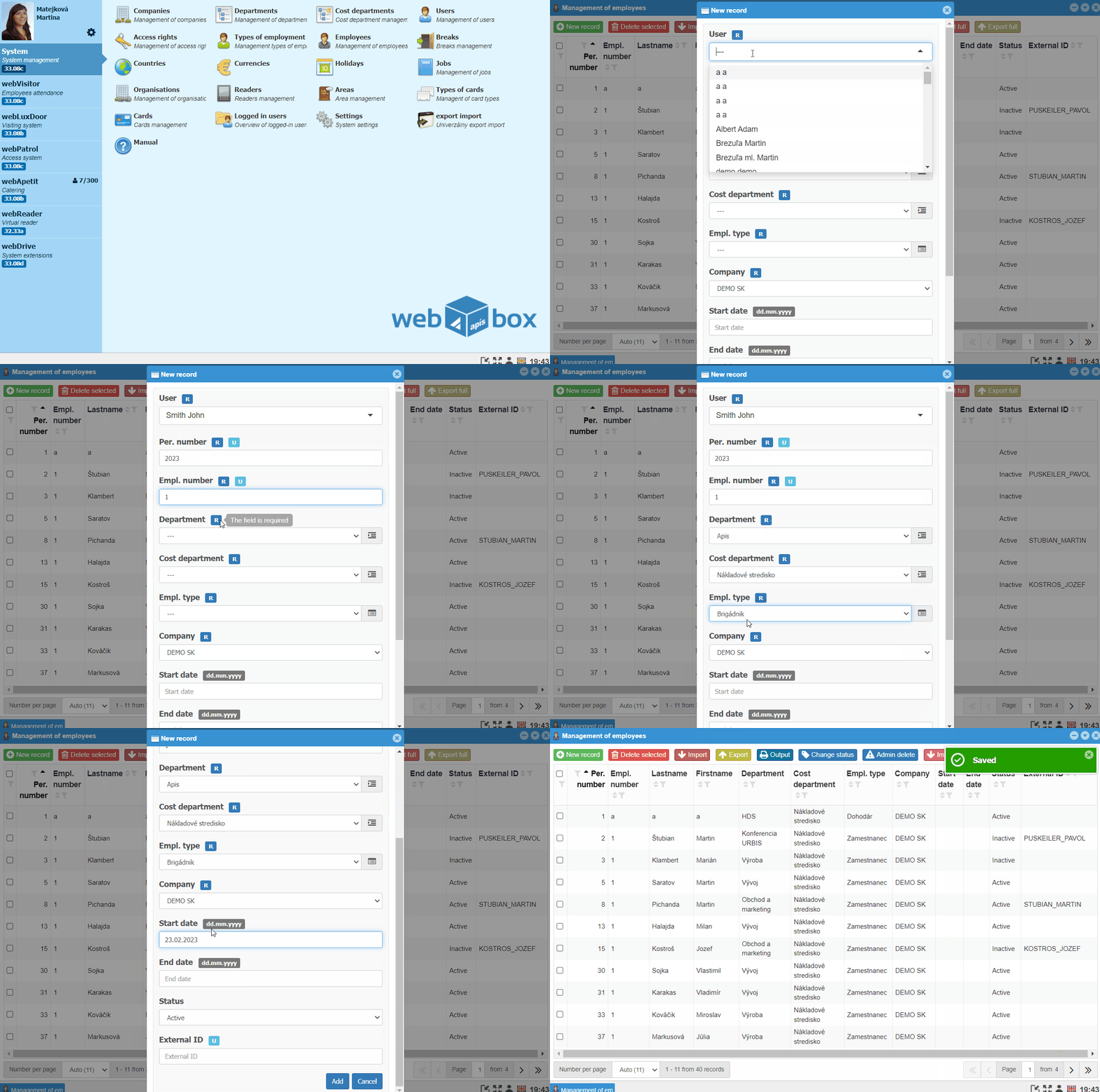
- In the System module, go to Employees
- Click on
New recordbutton - Select user from the dropdown box
- Enter Personal Number
Note
The personal number matches the number of the employee in the wages program.
- Enter Employment Number
Note
Enter 1 for the main type of employment.
- Select Department, Type of employment, Company is pre-filled
- Optionally, you can enter the Start and End date of employment
Note
The date affects the work calendar - it is not generated before the start and after the end of this date.
- Status Active/Inactive means whether the employee will be displayed in attendance
Note
The status affects the number of purchased licenses, so when an employee terminates the type of employment, you change the status to Inactive, thereby freeing up space in the number of licenses.
- if you are using a Konica Minolta device with an installed attendance application for attendance records, fill in the External ID
Note
The external ID is written in the form LASTNAME_NAME
The employee is now created and can be registered in attendance
# 4. Access rights to departments
The attendance administrator or manager is assigned access to the departments to see the attendance of other employees as well. A user without assigned access can only see his attendance.
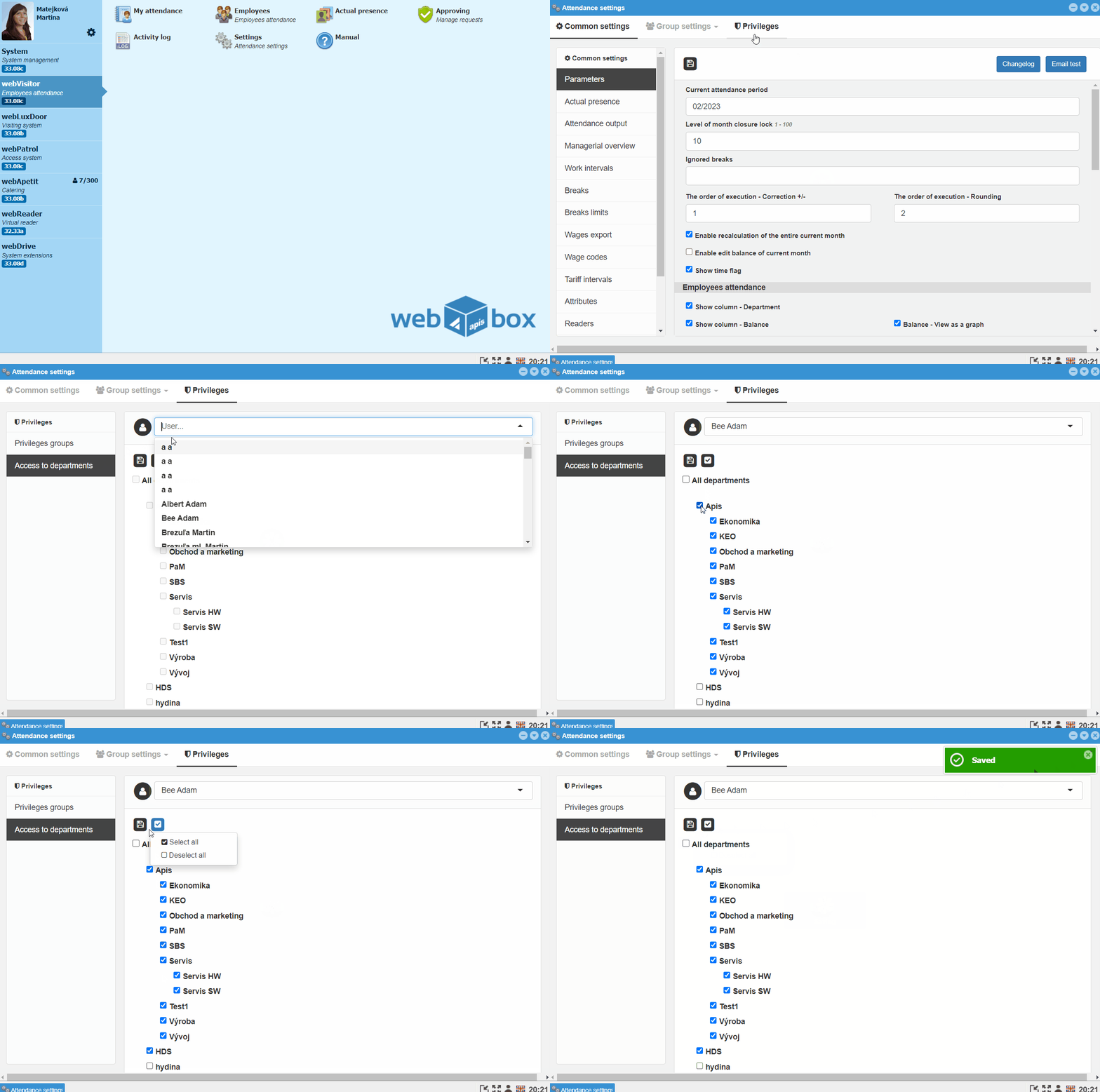
- Enter the webVisitor module
- Click Settings
- Go to the Privileges tab and there to Access to departments
- Search for the user in the drop-down box and check Departments to which he can access
- Save by clicking the button
Save
# 5. Plan generation
The work calendar is generated when the attendance transaction is downloaded for the first time, and then automatically one month ahead at the turn of the month. We can also generate the work calendar for a new employee manually.
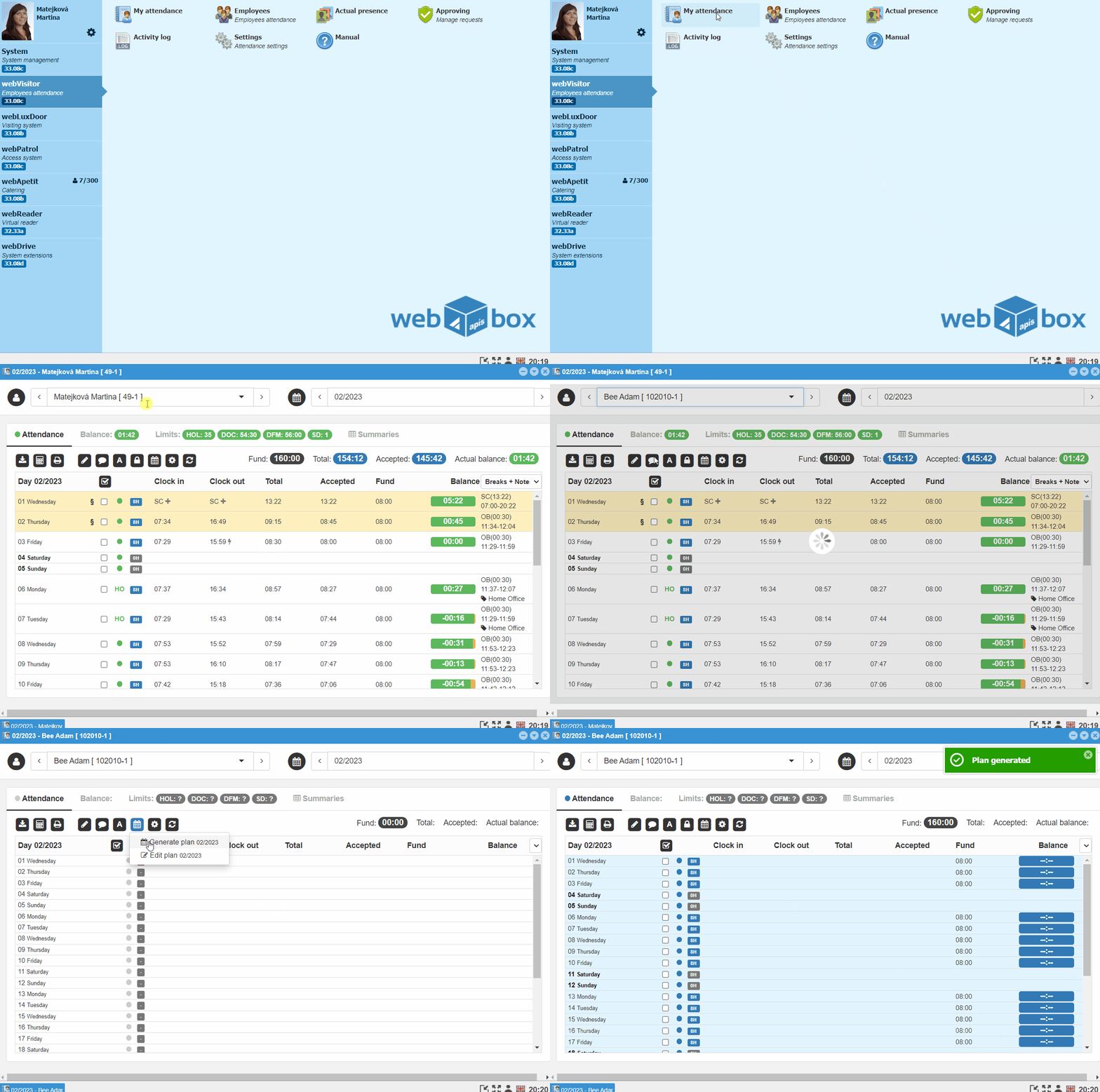
- In the webVisitor module, go to Employees
- Search for the employee for whom you want to generate a work calendar
-
Double-click' on the employee's line will take you to the monthly report - By going to the Calendar icon and clicking on Generate plan, the employee's work calendar will be generated
Note
If an employment start date is entered, the work calendar is generated from this date.
Predefined holidays are automatically generated in the work calendar.
Note
The type of work calendar is generated according to the work mode assigned to the department in which the employee is located.
An individual work mode can be assigned to an employee.