- webDrive
- Travel order
# Travel order
There are travel orders, open, pending approval, approved and closed. The main window of the travel order table and its options:
-
New travel order

# Travel order - new/edit/browse
The travel order consists of the categories Header, Items, Approval. When creating a new travel order, only the Header category is opened first, after filling in the Items and only after them Approval.
# Header
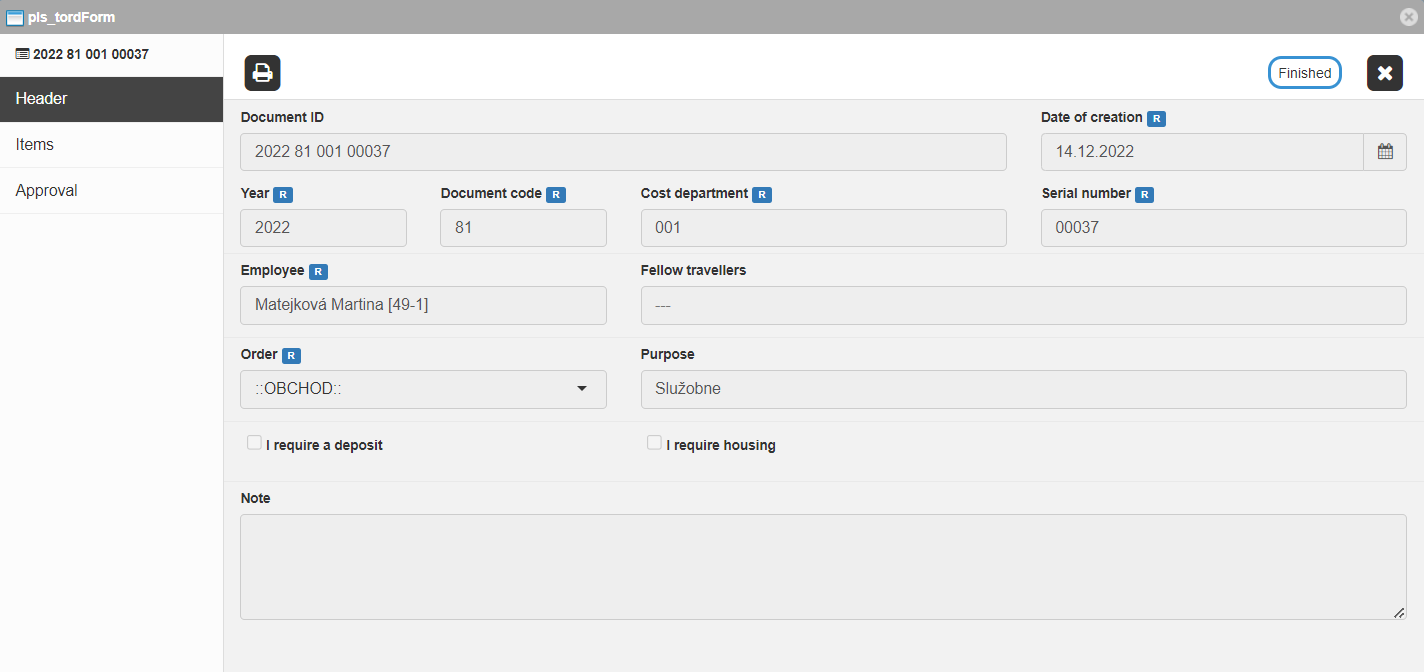
The header contains:
-
Document ID- it is generated automatically according to the settings, then it cannot be changed -
Date of creation - it is generated according to the date of creation of the travel order, but the date can be modified
 -
Year
-
Document code
-
Cost department
-
Serial number - is generated independently, possibility to pre-generate; the value code list can be found in the system settings -
Employee - preset according to the logged-in employee, can be modified -
Fellow travellers- text field from which you can enter a fellow traveller (not linked to his travel order) -
Order - Selection from the code list of orders -
Purpose- pre-settable, for example Company -
I require a deposit- marking option-
Depositif I require deposit is clicked, it is possible to enter a value and specify the menu in which the given value is (if it meets the conditions of the settings)
-
-
I require housing- marking option, only visible if enabled in settings-
Request about housing
-
-
Note
# Items
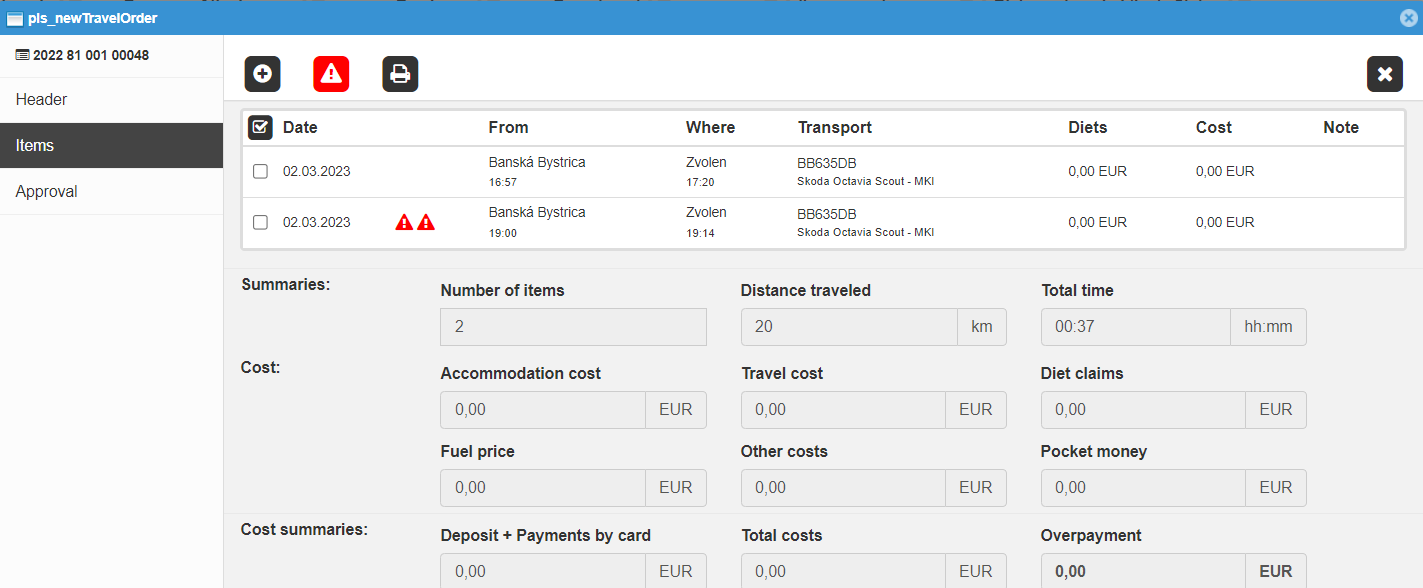
-
New item- creates a new item nested in the travel order -
New item by ride- creates a new item nested in the travel order according to the selected trip, or multiple items from multiple trips -
Fix items*1 - automatic generation of items so that there are no empty time periods between entered items
 -
Start billing*2 - forwarding the request according to the settings
 -
Recalculate total time*2 - after selecting a break from attendance, it recalculates the total time
 -
*Recalculate diet claims*2 - calculates diet claims according to the total time and diet claims -
*Recalculate fuel*2 - in the event that the ride was carried out in a private vehicle -
Output
Note:
*1 It is only visible if there is an empty time slot between items
*2 It is only visible after the itinerary has been approved
After using the secondary mouse button, a window opens with additional options:
-
Edit item- opens the item editing window -
View item- opens the item display window -
Remove item -
Create the following item- creates an item with the location and end time of the marked item -
Create a reverse item- creates a reverse item of the selected item with a recalculated arrival time -
Duplicate item -
Split item- divides the item according to the user's choice
Further in the table we see summaries and costs:
(* Summaries - nasledujúce údaje sa nezadávajú, ale prepočítavajú podľa vložených položiek
-
Number of items -
Distance traveled -
Total time-
Recalculate according to attendance intervals - when editing the data, after returning from a business trip, it is possible to recalculate the time using the business trip intervals from the attendance data
)
- when editing the data, after returning from a business trip, it is possible to recalculate the time using the business trip intervals from the attendance data
)
-
# Item
A travel order item is very similar to a Ride, but not exactly the same.
# Header
-
Method of transport - Bussiness vehicle, Private vehicle, Public transport -
Vehicle - selection from the code list of vehicles according to the method of transport -
Average speed- is recalculated according to the data of date and time of departure, date and time of arrival, Distance traveled, not calculated for Public Transport -
Country
-
Currency -
The beginning-
Departure city - text field, it is possible to select from the route table according to already entered letters -
Departure date
-
View attendance intervals - when you click on the magnifying glass icon, the attendance of the specified employee on the specified date is displayed, according to which the time can be adjusted (if it is an adjustment after the end of the business trip)
-
-
Departure time
-
-
Destination
-
Arrival city - text field, it is possible to select from the route table according to already entered letters -
Arrival date
-
View attendance intervals - when you click on the magnifying glass icon, the attendance of the specified employee on the specified date is displayed, according to which the time can be adjusted (if it is an adjustment after the end of the business trip)
-
-
Arrival time
-
-
Distance-
Distance traveled - is entered in kilometers, it is possible to save the distance in the route code list for later use (departure city, arrival city, distance and time are saved)
-
# Costs
The costs are divided into several categories, namely:
-
Category
-
Other- ancillary expenses such as telephone, internet, exhibition, trade fair, garage use, parking fee, highway, tunnel, computer, etc. -
Fuel- the price of added fuel -
Housing- hotel bill, or bill for a private housing facility -
Travel- travel tickets, air tickets, sunbeds, beds, taxi, local regular public transport -
Compensation per km- in the case of driving a private vehicle
-
In addition to Category, which can be changed, the basic fields are other items:
-
Description
-
Sum
-
Currency
-
Paid business by card -
Note -
Attachments
In the case of the Fuel category, there are also fields:
-
Pumped fuel
-
Price for liter
# Additional information
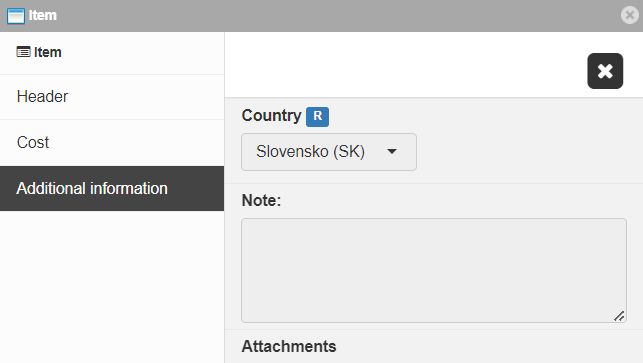
Contains fields:
-
Country
-
Note -
Attachments
# Approval
It consists of buttons and an inner window containing approval status data. That is, consisting of information about the current approval statusat which the travel order is located, information about the previous request/approval/non-approval steps and the subsequent return of the travel order to the In Progress state. Each step is preserved during approval and it is possible to view the details of the request, or a note that can be used mainly in the case of non-approval, such as writing out the reason for the non-approval.
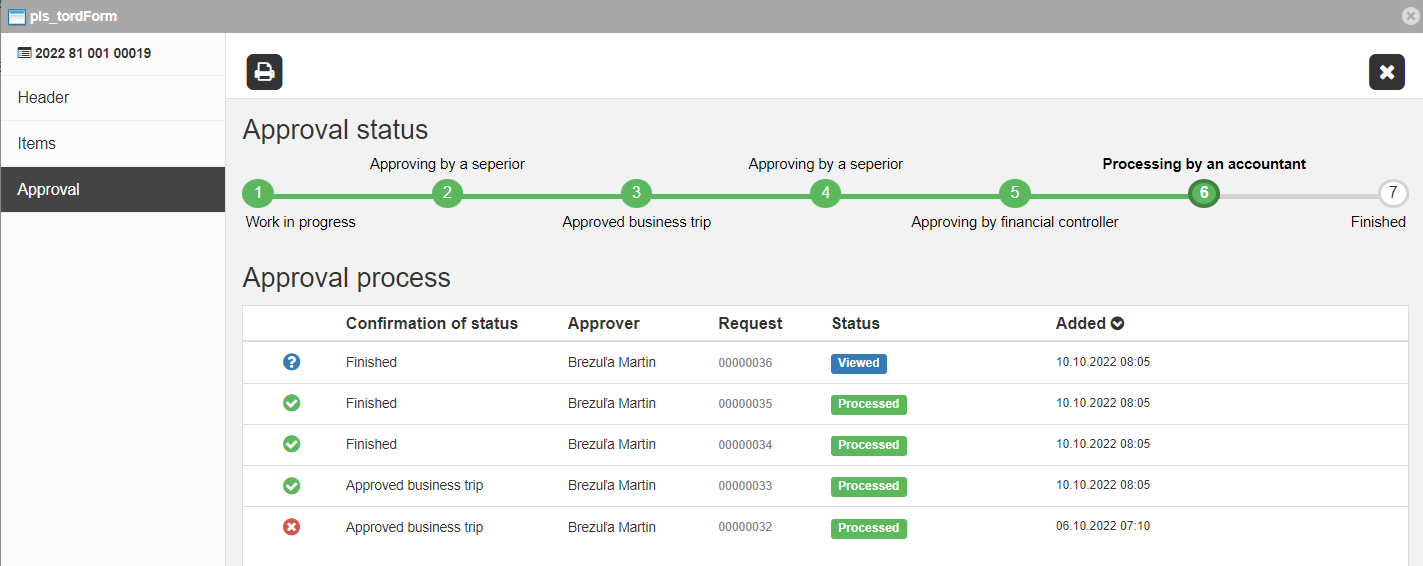
Buttons:
-
Request approval - the New Request window opens
 -
Output
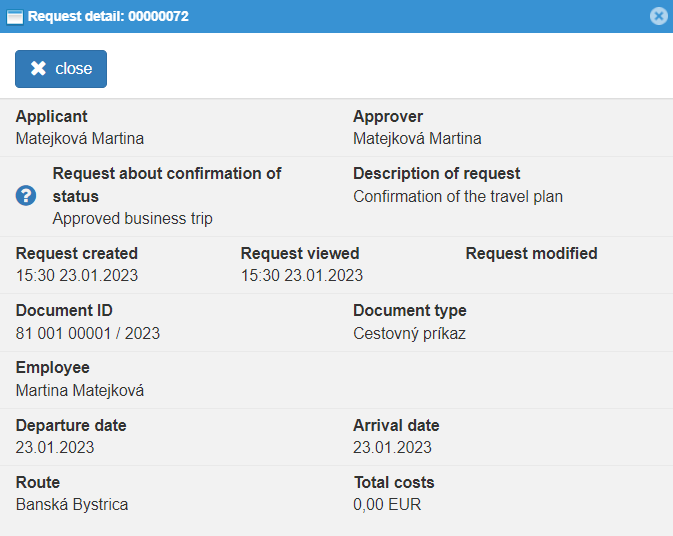
Individual records of the approval process can be accessed by clicking with the secondary mouse button. If you have approval authority and the request for the given travel order has been sent to you, you also have the option to Manage the request. Next, you have the option to cancel the request and view the details of the request.
# New request
The new request window consists of different parts according to the approval settings. For example, when approving using Approval along the way, by superior and accountant it is necessary to select an Approver - Superior with a possible note from the applicant for the selected superior and subsequently also an Approver - Accountant with a possible note from the applicant for the selected accountant